> For the complete documentation index, see [llms.txt](https://docs.authgear.com/llms.txt). Markdown versions of documentation pages are available by appending `.md` to page URLs; this page is available as [Markdown](https://docs.authgear.com/authentication-and-access/authentication/whatsapp-otp-login.md).
# Add WhatsApp OTP Login
Allow users to log into your app via OTP with WhatsApp, as a secure alternative to SMS
## Enable WhatsApp OTP in your project
Authgear let your users login passwordlessly with WhatsApp OTP.
To enable this feature from the Portal:
1. Go to **Authentication > Login Methods**, we are going make few changes on this page.
2. In the top section of **Select Login Methods**, select **Mobile**.
3. In **Authentication** of **Select Login Methods**, select **Passwordless**.
4. In the tabs section below, switch to the tab **Verification and OTP**.
5. In the dropdown **Verify phone number by**, select either **WhatsApp or SMS** or **WhatsApp only**.
6. Press **Save** on the top left corner.
When the user login with their phone number, a WhatsApp message with an OTP will be received. They can copy the code by tapping on the "Copy code" button and log in by the code.
If "**Verify phone number by WhatsApp or SMS**" is enabled, the user can switch to receive the OTP via SMS instead in the login page.
## Set up your own WhatsApp Business account
By default, WhatsApp OTP are sent via a shared Authgear sender. If you want them to be sent with your own WhatsApp numbers, you need a WhatsApp Business account and a Meta App. This guide shows you how to set up a WhatsApp Business number for Authgear OTP authentication.
You will need an unused phone number, and a Facebook account.
### Step 1: Create a business portfolio
{% hint style="warning" %}
Skip this if you already have an existing business portfolio
{% endhint %}
1. Go to [business.facebook.com](https://business.facebook.com/) in a desktop browser. You will also use this address to log into Meta Business Suite. If you already have access to Meta Business Suite, you can also click the dropdown menu located at the top of the left menu. Then skip to Step 4.
2. Click **Create account**.
3. Log into your personal Facebook account. If you don’t have an account, click **Create account** to sign up for one.
4. Click **Create a business portfolio**.
5. Enter your business details.
* **Business portfolio name**. It should match the public name of your business or organization, since it will be visible across Meta. It can't contain special characters.
* **Your name**.
* **Business email**. Meta will use this email to contact you about your business. It won't be visible to your customers.
6. Click **Submit** or **Create** to create your portfolio. You’ll get an email asking to confirm your business email address.
### Step 2: Register Phone number as a new WhatsApp Business Account
1. Go to “Settings” in Meta Businss Suite
2. Under “Accounts”, go to “WhatsApp accounts” and then “Create a new WhatsApp Business account”
3. Enter the display name and set up the profile image, which will be shown to your users
4. Use a unregistered phone number for the account, Follow the on-screen instructions to verify the phone number
5. Set up payment method in this business portfolio and link the WhatsApp account with the payment method.
### Step 3: Set up Message template
1. Go to “WhatsApp Manager” in Meta Business Suite, if the item is not available in the nav bar, search WhatsApp in “All tools”
2. Go to “Manage templates” and “Create Template”, make sure the correct WhatsApp business account is selected on the top right dropdown.
3. Select “Authentication” type
4. For each language you wish to support, create a template named `one_time_password`
1. Select “Copy Code” under **Code delivery setup**
2. Select “Add security recommendation” under **Content**
3. Set Validity period to 10 minutes
5. The template page should look like this after adding the required languages
### Step 4: Set up Application
In this step, we will create a “Meta App”
1. Go to and create a new app
2. Enter an identifier for the meta app and your contact email
3. In User cases, select “**Other**”
4. App type, select “Business”
5. Link to the business portolio created in step 1.
6. After creating the app, select “WhatsApp” in “Add product to your app”
7. In “API Setup”, tap “Generate access token” and select the WhatsApp account we created in Step 2. Then click continue.\

8. Under “From” dropdown, select the phone number we registered in Step 2. Note the “**Phone number ID**” and “**WhatsApp Business Account ID**”. Here if your enter a valid “To” number, you should be able to receive a testing “Hello World” message.
9. Go to “App Settings”, add “Privacy Policy” link; and note the **"App ID"**, and **"App secret"** on this page.
10. Switch App mode to “**Live**” (You may be asked to enter business details for review.)
### Step 5: Set up “System User”
1. Go back to **Meta Business Suite** [business.facebook.com](http://business.facebook.com)
2. Go to “Settings” > “Users” > “System users”
3. Add a new system user
4. Assign the App we created in Step 4 with “Develop app” access
5. Assign the WhatsApp account created in Step 2 with "Message templates (view only)” and “Phone Numbers (view and manage)” access
6. Click “**Generate token**” and note the token created.
{% hint style="success" %}
Now, give Authgear team the following items:
* **Phone number ID**
* **WhatsApp Business Account ID**
* **Access Token of the System user**
* **App ID**
* **App Secret**
And we will help you set up the connection in the backend
{% endhint %}
### Step 6: Set up Automatic SMS Fallback
To support automatic fallback to SMS when the WhatsApp delivery failed, we will need to set up a webhook between Meta and the Authgear server to check the delivery status of messages.
{% hint style="info" %}
You can share app access with the Authgear Team for assistance with this step.
{% endhint %}
1. Go back to and manage the app we created
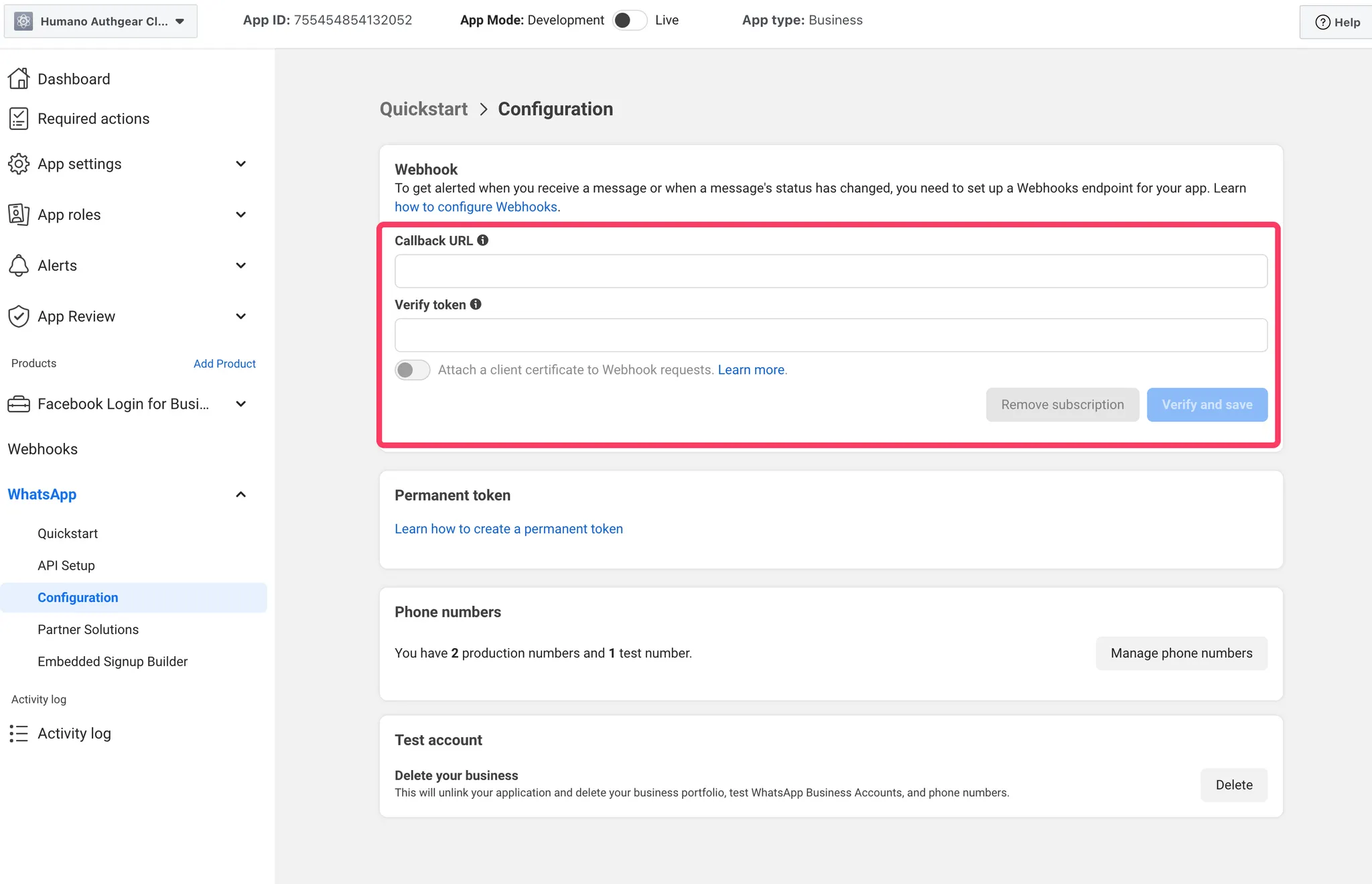
2. Under WhatsApp, go to “Configuration”
3. Fill in the
1. Callback URL: `https://{authgear_endpoint}/whatsapp/webhook`
2. Verify token: A random string
1. e.g. Use `openssl rand -hex 16` command to generate a 32-character sequence
4. Share the **“Verify token”** to the Authgear Team for backend configuration
5. Press “Verify and save”
6. In The “Webhooks” page, select “WhatsApp Business Account” under Product, and then enable the `messages` webhook subscription.
7. Subscribe to the WhatsApp Business Account
1. This step is required to let your facebook app to receive notifications from your whatsapp business account.\
Note, you must be logged in to an account with access to both your Facebook app and Whatsapp Business account to perform these steps:
1. Go to
2. In "Meta App", select your facebook app
3. In User or Page, select "User Token"
4. In "Add a permission", select:
* whatsapp\_business\_management
* whatsapp\_business\_messaging
5. Press Generate Access Token
6. Then, type `{WABA_ID}/subscribed_apps` as the request path. Replace `{WABA_ID}` with your whatsapp business account ID.
7. Change the request method to `POST`.
8. Press "Submit"
9. Change the request method to `GET`, submit and confirm a new item is created. You should an item like this:
```json
{
"whatsapp_business_api_data": {
"link": "https://www.facebook.com/games/?app_id=1234567890987654",
"name": "YOUR APP NAME",
"id": "1234567890987654"
}
},
```
{% hint style="success" %}
Now, give Authgear team the following items:
* **Phone number ID**
* **WhatsApp Business Account ID**
* **Access Token of the System user**
* **App ID**
* **App Secret**
* **Verify Token**
And we will help you set up the connection in the backend
{% endhint %}
---
# Agent Instructions
This documentation is published with GitBook. GitBook is the documentation platform designed so that both humans and AI agents can read, navigate, and reason over technical content effectively. Learn more at gitbook.com.
## Querying This Documentation
If you need additional information that is not directly available in this page, you can query the documentation by asking a question.
Perform an HTTP GET request on the following URL with the `ask` and `goal` query parameters:
```
GET https://docs.authgear.com/authentication-and-access/authentication/whatsapp-otp-login.md?ask=&goal=
```
`ask` is the immediate question: it should be specific, self-contained, and written in natural language.
`goal` is what the user is ultimately trying to achieve, the reason they need the answer. Sharing it helps GitBook give you a better, more relevant answer. A goal is most helpful when it describes the outcome the user wants rather than restating the question. For example, with `ask=how do I create an API token`, a goal like `automate deployments from our CI pipeline` lets GitBook tailor the answer to that use case.
The response will contain a direct answer to the question and relevant excerpts and sources from the documentation.
Use this mechanism when the answer is not explicitly present in the current page, you need clarification or additional context, or you want to retrieve related documentation sections.