> For the complete documentation index, see [llms.txt](https://docs.authgear.com/llms.txt). Markdown versions of documentation pages are available by appending `.md` to page URLs; this page is available as [Markdown](https://docs.authgear.com/customization/custom-ui/implement-a-custom-account-recovery-ui-using-authentication-flow-api.md).
# Implement a custom account recovery UI using Authentication Flow API
Guide on how to implement your own account recovery UI powered by the Authentication Flow API
In this guide, you'll learn how to implement your own custom account recovery page that is powered by the Authentication Flow API.
Before we continue, here's an overview of our objectives for this post:
### What we will build
At the end of this guide we'll build a custom account recovery UI using Express.js that will do the following:
* Allow users to enter the phone number associated with their account as login ID.
* Send an account recovery code to the phone number.
* Provide a UI for the user to enter and verify the recovery code.
* Finally, a UI for the user to set a new password for their account.
### Prerequisites
To follow this guide, you should have the following:
* [Node.js](https://nodejs.org/) is installed on your local machine.
* A code editor like VS Code, Sublime, Atom, or any editor you already use for JavaScript development.
* Be comfortable working with CLI tools like NPM.
* Last but not least, an Authgear account. Sign up for free [here](http://authgear.com/).
### Step 1: Set up your Authgear Project to use Custom UI
Using custom UI in your Authgear application requires setting the value for Custom UI URI to where your custom UI is hosted.
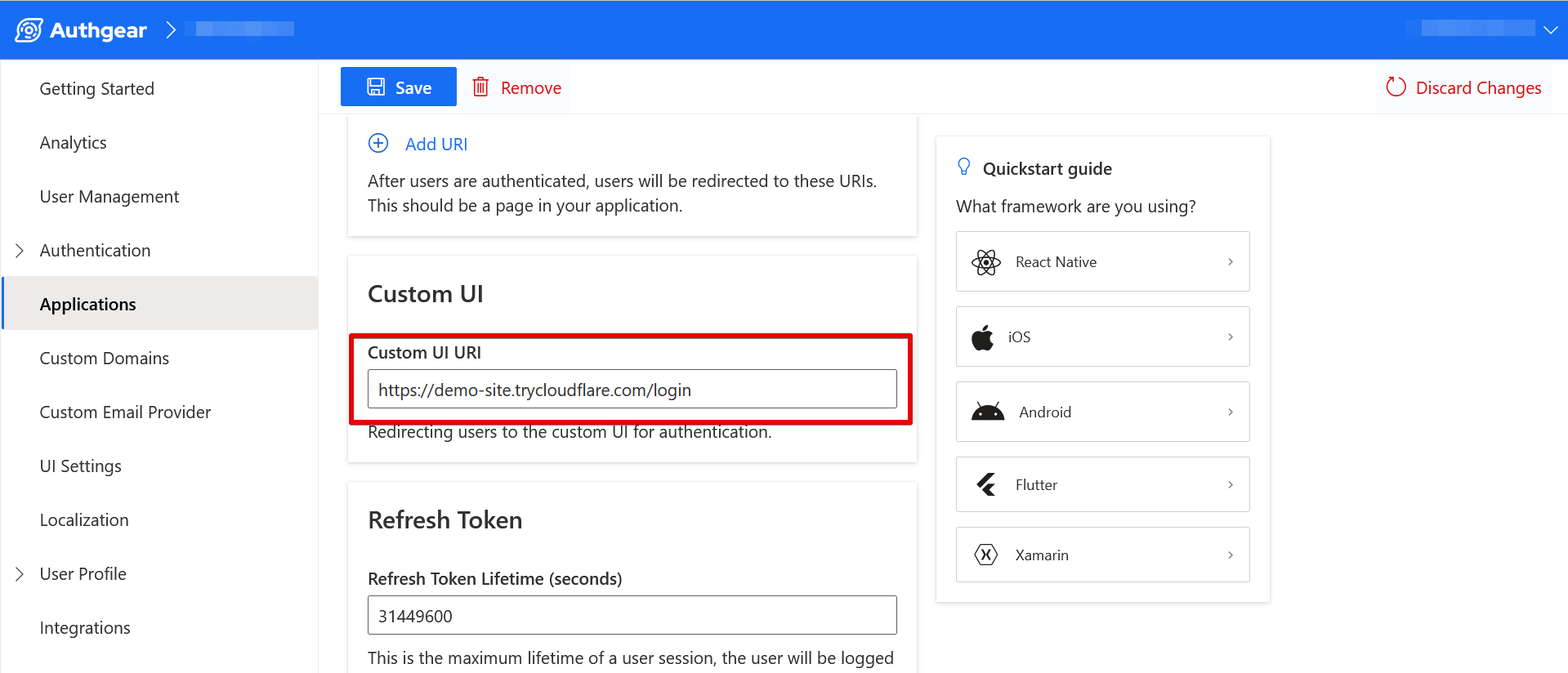
To set this value, log in to the Authgear Portal and navigate to **Applications** then select your application. Next, in your application's configuration page, scroll down to the Custom UI section and enter the URL for your custom UI.
For the example in this post, we'll be using CloudFlare Tunnel to expose the custom UI we'll be building so that we can have a public URL to enter in the **Custom UI URI** field in our Authgear application configuration.
If you're new to the Authentication Flow API, check this getting started post \[HERE(LINK)] to learn more about configuring your project for the API.
### Step 2: Create Express project
Now let's create the Express project that we'll be using to implement the account recovery Custom UI.
To create a new Express project create a new folder with the name "custom-recovery" on your computer using a file explorer or using the following command in PowerShell or Terminal:
```sh
mkdir custom-recovery
```
This folder will serve as your Express project folder.
Next, install the Express package by running the following command:
```sh
npm i express
```
Finally, create a new JavaScript file with the name "app.js" in the new folder you created earlier. This is the file where we'll implement our application logic.
Add the following code to the new app.js file:
```javascript
const express = require('express');
const app = express();
const port = process.env.PORT || 3000;
app.get('/', (req, res) => {
res.send(`
A demo for account recovery using authflow API. Click on the following link to try it
Forgot password
`)
});
app.get('/recovery', async (req, res)=> {
res.send("Test recovery");
});
app.listen(port, () => {
console.log(`server started on port ${port}!`);
});
```
At this point, test your work so far by running the following command from the root of your Express project folder:
```sh
node app.js
```
Then go to your preferred web browser and visit .
### Step 3: Create account recovery page
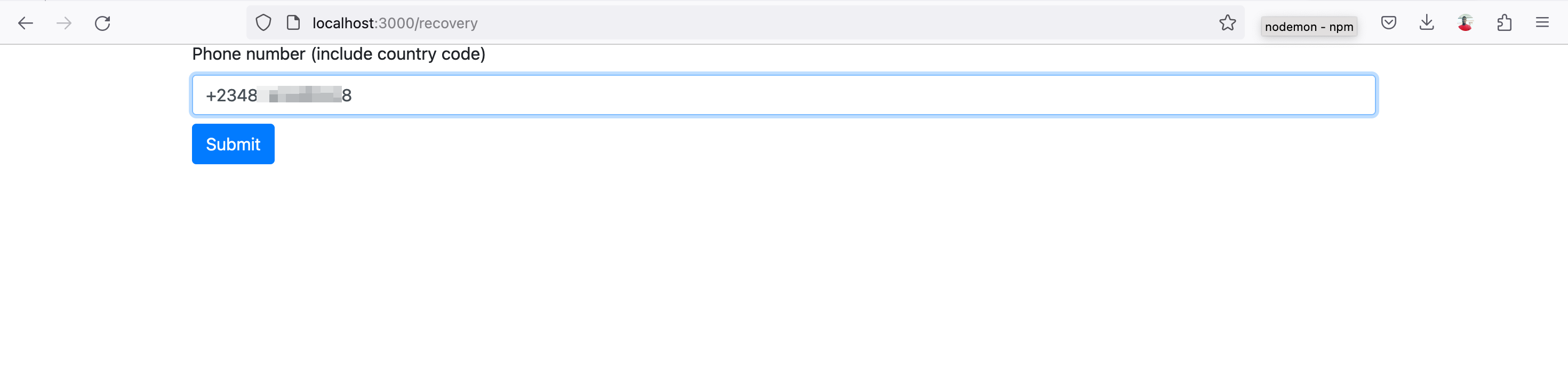
Here we'll create the UI for the first page of the recovery flow. This will be a basic webpage with an input field for the user to enter their phone (login id) and a submit button.
Open **app.js** in your code editor and update the content of the `app.get('/recovery')` route to the following:
```javascript
app.get('/recovery', async (req, res)=> {
const URLQuery = rawURLQuery(req.url);
res.send(`
Account recovery
`);
});
```
The above code refers to a `rawURLQuery()` and `initRecovery()` functions that we've not implemented yet. We'll implement the first function in this step and the second in the next step.
The form we created using the above code looks like this:
Look for the following line of code in your **app.js** file:
```javascript
const port = process.env.PORT || 3000;
```
Then add the following code on a new line just below it:
```javascript
function rawURLQuery(url) {
const index = url.indexOf('?');
return (index === 0) ? url.substr(index + 1) : "";
}
```
The above code implements the `rawURLQuery()` function we mentioned earlier. This function is a helper that helps us extract URL Query from the current request. We need a special URL Query from Authgear in order to get the **finish redirect URI** at the end of our recovery flow. You can learn more about the URL Query \[HERE(LINK)].
### Step 3: Initialize the recovery flow
In this step, we'll initialize a new authentication flow of type `account_recovery`.
For this step and other steps that follow, we'll be making HTTP request to the Authentication Flow API using the Axios node package. Install Axios by running the following command:
```sh
npm i axios
```
Import Axios to your project by adding the following code to the top of app,js:
```javascript
const axios = require('axios');
```
Next, again, look for the following line in your app.js file:
```javascript
const port = process.env.PORT || 3000;
```
Add the following code on a new line just below it:
```javascript
const endpoint = "https://cube-crisp-110.authgear-staging.com";
async function initRecovery(url_query) {
const url = `${endpoint}/api/v1/authentication_flows?${url_query}`;
const input = {
"type": "account_recovery",
"name": "default"
};
const headers = {
"Content-Type": "application/json",
"Accept": "application/json",
}
try {
startRecovery = await axios.post(url, input, {
headers: headers
});
return startRecovery.data.result.state_token;
}
catch (error) {
console.log(error.response.data.error);
return error.response;
}
}
```
The above code implements the `initRecovery()` function. The function sends the HTTP request that initializes a new account recovery flow and returns a `state_token`. We'll use this state\_token to continue to the next step of the flow. Hence we are passing the value for state\_token to the next step using ``.
The response to the HTTP request looks like this:
```json
{
"result": {
"state_token": "authflowstate_5QKK3BRPETYQ7SYWYFQ4N2MR3F0S8S0Q",
"type": "account_recovery",
"name": "default",
"action": {
"type": "identify",
"data": {
"options": [
{
"identification": "email"
},
{
"identification": "phone"
}
]
}
}
}
}
```
### Step 4: Send recovery code
In this step, we'll implement the code that will send the recovery code to the user's phone after they enter their phone number on the form and click submit.
Add a new `beginRecovery()` function to app.js (just below the `initRecovery()` function) using the following code:
```javascript
async function beginRecovery(login_id, state_token) {
const url = `${endpoint}/api/v1/authentication_flows/states/input`;
const input = {
"state_token": state_token,
"batch_input": [
{
"identification": "phone",
"login_id": login_id
},
{
"index": 0 //option of the channel the recovery code will be sent to
}
]
};
const headers = {
"Content-Type": "application/json",
"Accept": "application/json",
}
try {
const recoveryIdentityStep = await axios.post(url, input, {
headers: headers
});
return recoveryIdentityStep;
}
catch (error) {
console.log(error.response.data.error);
return error.response;
}
}
```
The above code sends a request with the user's phone number (`login_id`) and the position of the channel (`index`) to which the code should be sent.
To enable Express to process form data correctly, add the following code on a new line to the top of app.js (just below `const app = express();`):
```javascript
app.use(express.urlencoded({ extended: true }));
```
Now create a POST route that will call the `beginRecovery()` function by adding the following code just below the `app.get('/recovery')` route:
```javascript
app.post('/recovery', async (req, res) => {
try {
const apiResponse = await beginRecovery(req.body.phone, req.body.state_token);
if (apiResponse.status == 200) {
req.session.recovery_response = apiResponse.data.result.action.data;
req.session.recovery_response.state_token = apiResponse.data.result.state_token;
res.redirect("/verifyRecovery");
} else {
res.send("Error!")
}
}
catch (error) {
console.log(error)
res.send("Error: authentication failed!");
}
});
```
The above code will redirect the user to a `verifyRecovery` page if a recovery code was sent successfully. We'll implement this page in the next step.
The above code uses express-session, so install the package by running the following command:
```sh
npm i express-session
```
Then import express-session to your app.js by adding this code to the top of the file:
```javascript
const session = require('express-session');
```
Finally, enable express-session as a middle-ware by adding for following code on a new line at the top of app.js (just below `const app = express();`):
```javascript
const session = require('express-session');
```
### Step 5: Verify recovery code
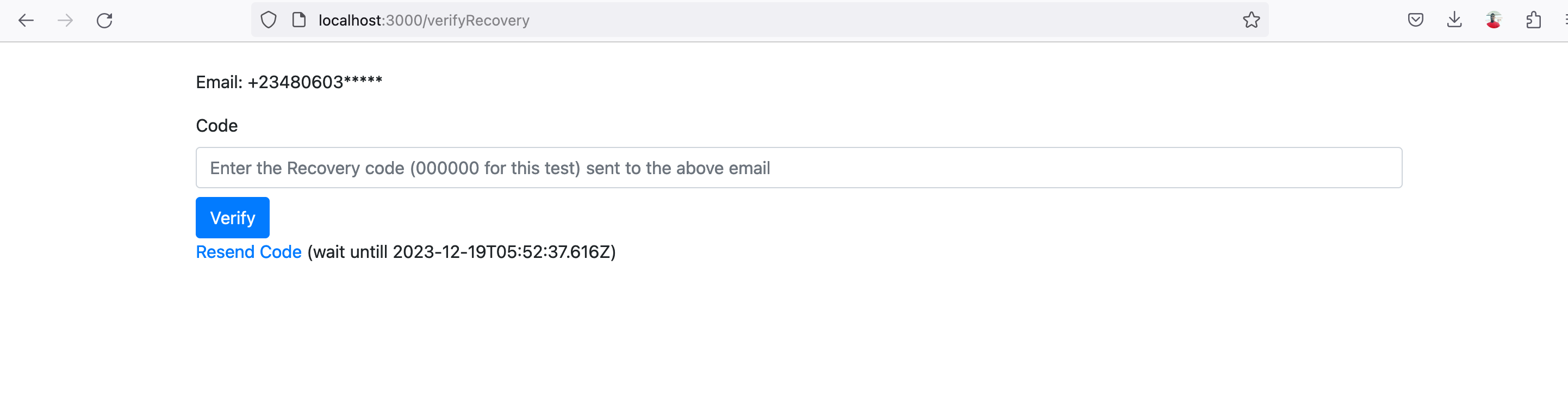
Now let us implement the page where the user can enter the recovery code they got for verification.
Add a new route to app.js to create the UI for the verification page:
```javascript
app.get('/verifyRecovery', async (req, res) => {
const recoveryResponseData = req.session.recovery_response;
res.send(`
Verify recovery code
`);
});
```
Here is what the verify recovery code page looks like:
Next, add a new `verifyRecoveryCode()` function to app.js using the following code:
```javascript
async function verifyRecoveryCode(code, state_token) {
const url = `${endpoint}/api/v1/authentication_flows/states/input`;
const input = {
"state_token": state_token,
"input": {
"account_recovery_code": code
}
};
const headers = {
"Content-Type": "application/json",
"Accept": "application/json",
}
try {
const verifyCodeStep = await axios.post(url, input, {
headers: headers
});
return verifyCodeStep;
}
catch (error) {
return error.response;
}
}
```
The above code will send the request to the Authentication Flow API with the account recovery code a user enters.
To finish up the recovery code verification process, add a new route that will handle the form submission using the following code:
```javascript
app.post('/verifyRecovery', async (req, res) => {
try {
const apiResponse = await verifyRecoveryCode(req.body.code, req.body.state_token);
if (apiResponse.status == 200) {
req.session.verify_step_state_token = apiResponse.data.result.state_token;
res.redirect("/setPassword");
} else {
res.send("Error!")
}
}
catch (error) {
console.log(error)
res.send("Error: authentication failed!");
}
});
```
The code sample above will redirect the user to a `setPassword` page after successful verification of the recovery code they entered. In the next step, we'll implement the page where the user can set a new password.
### Step 6: Implement set new password page
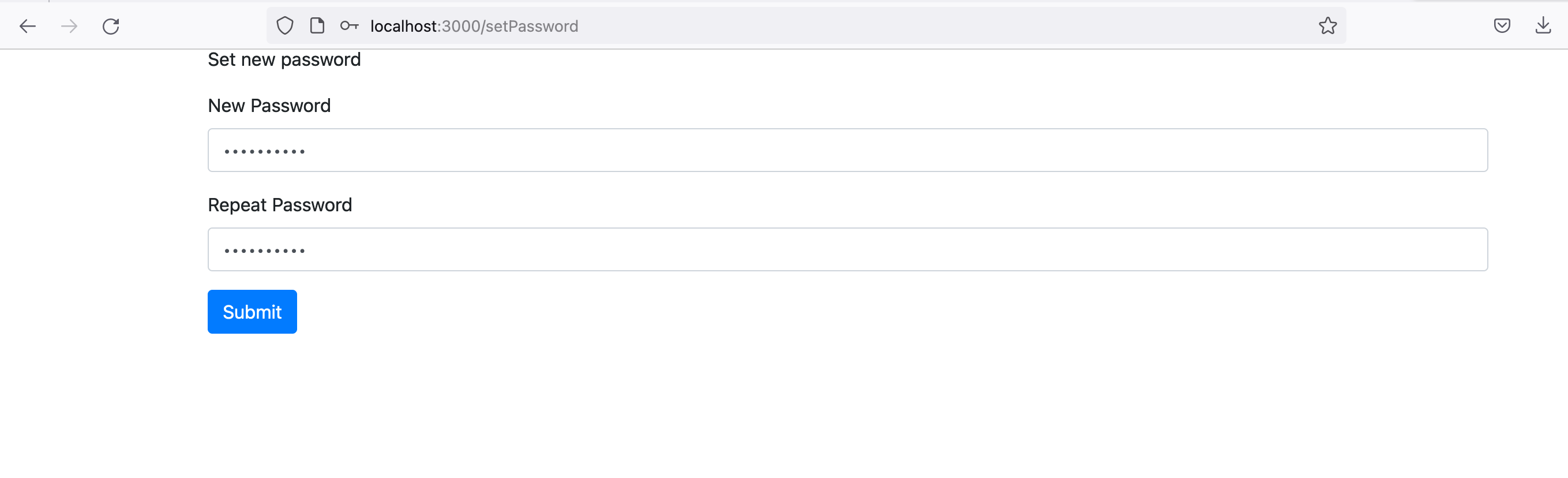
The final step of the account recovery process is for the user to set a new password for their account. In this step, we'll implement the UI for that.
First, add a new route to your app.js to create the UI using the following code:
```javascript
app.get('/setPassword', async (req, res) => {
res.send(`
Set new password
`);
});
```
The above code will implement a page that looks like this:
Add a new `recoverySetPassword()` function to app.js using the following code:
```javascript
async function recoverySetPassword(password, state_token) {
const url = `${endpoint}/api/v1/authentication_flows/states/input`;
const input = {
"state_token": state_token,
"input": {
"new_password": password
}
};
const headers = {
"Content-Type": "application/json",
"Accept": "application/json",
}
try {
const verifyCodeStep = await axios.post(url, input, {
headers: headers
});
return verifyCodeStep;
}
catch (error) {
console.log(error.response.data.error);
return error.response;
}
}
```
Next, create the route that will handle the submission of the set new password form using the following:
```javascript
app.post('/setPassword', async (req, res) => {
try {
const apiResponse = await recoverySetPassword(req.body.password, req.body.state_token);
if (apiResponse.status == 200 && apiResponse.data.result.action.data.finish_redirect_uri !== undefined) {
//password reset complete, return control back to Authgear
res.redirect(apiResponse.data.result.action.data.finish_redirect_uri);
} else {
res.send(apiResponse.data)
}
}
catch (error) {
console.log(error)
res.send("Error: account recovery failed!");
}
});
```
If the new password is set successfully, the above code will return control to Authgear to complete the rest of the authentication flow and return to your application. This is done by redirecting the client to the `finish_redirect_uri`.
### Conclusion
And there you have it, you've successfully implemented your own custom password recovery UI powered by the Authentication Flow API.
For our example application, we used the phone number as `login_id` and the channel for receiving the recovery code. In a real app, you may use another channel such as email instead or even support both depending on what is available for the user.
---
# Agent Instructions
This documentation is published with GitBook. GitBook is the documentation platform designed so that both humans and AI agents can read, navigate, and reason over technical content effectively. Learn more at gitbook.com.
## Querying This Documentation
If you need additional information that is not directly available in this page, you can query the documentation by asking a question.
Perform an HTTP GET request on the following URL with the `ask` and `goal` query parameters:
```
GET https://docs.authgear.com/customization/custom-ui/implement-a-custom-account-recovery-ui-using-authentication-flow-api.md?ask=&goal=
```
`ask` is the immediate question: it should be specific, self-contained, and written in natural language.
`goal` is what the user is ultimately trying to achieve, the reason they need the answer. Sharing it helps GitBook give you a better, more relevant answer. A goal is most helpful when it describes the outcome the user wants rather than restating the question. For example, with `ask=how do I create an API token`, a goal like `automate deployments from our CI pipeline` lets GitBook tailor the answer to that use case.
The response will contain a direct answer to the question and relevant excerpts and sources from the documentation.
Use this mechanism when the answer is not explicitly present in the current page, you need clarification or additional context, or you want to retrieve related documentation sections.