> For the complete documentation index, see [llms.txt](https://docs.authgear.com/llms.txt). Markdown versions of documentation pages are available by appending `.md` to page URLs; this page is available as [Markdown](https://docs.authgear.com/admin-and-operations/migration.md).
# Migration
Strategy for migrating from another auth provider to Authgear.
You can keep your existing users and data when you move from another authentication system to Authgear.
We support migration from just about any authentication system, including services like Auth0 and a custom built authentication system. Whether you're leaving your existing authentication provider because your license is expiring soon or the system is being deprecated, you can seamlessly move to Authgear and keep your user data.
For more peace of mind and to avoid the feeling of being locked into Authgear as a provider, Authgear also allows you to seamlessly export your user data.
In this article, we'll cover all the best strategies and best practices you can use to migrate your users from other identity providers to Authgear.
{% hint style="info" %}
Need help planning or running your migration? [Talk to us](https://www.authgear.com/schedule-demo) and our team will help with planning, the user import and the switch-over.
{% endhint %}
## Migration Strategies
Generally, migration to Authgear is as simple as importing your user data to Authgear and then updating your app to use Authgear sessions. You can migrate all your data at once or do it gradually, depending on what approach works best in your specific use case.
We recommend these three approaches for migrating user data into Authgear:
* Bulk migration
* Rolling migration
* Zero-Downtime migration
### 1. Bulk migration
The bulk migration strategy allows you to import all your users to your Authgear project at once.
Bulk migration is ideal when you want to stop using your old authentication system immediately. For example, in a scenario where the license on your existing system is expiring or the product is being deprecated.
#### Pros
* Bulk migration is the most straightforward approach.
* It allows you to stop using your old system as quickly as possible.
#### Cons
* It requires some downtime while you are moving from the old system to Authgear.
For detailed steps on bulk migration, see:
{% content-ref url="/pages/XjhoZLdWd0nzu5mAuHLy" %}
[Bulk migration](/admin-and-operations/migration/bulk-migration.md)
{% endcontent-ref %}
### 2. Rolling deployment
The rolling deployment approach allows you to move some portion of your users (e.g., users in a specific region) to Authgear, or only allow new users to sign up via Authgear.
#### Pros
* Rolling deployment allows a slow transition with controllable user impact or downtime.
#### Cons
* It means indefinitely support for your old authentication system.
{% hint style="info" %}
For new users who go through the new sign-up flow using Authgear, a record in the legacy system should be in place to handle an edge case where the user tries to log in on another device with an older app version.
{% endhint %}
### 3. Zero-Downtime migration
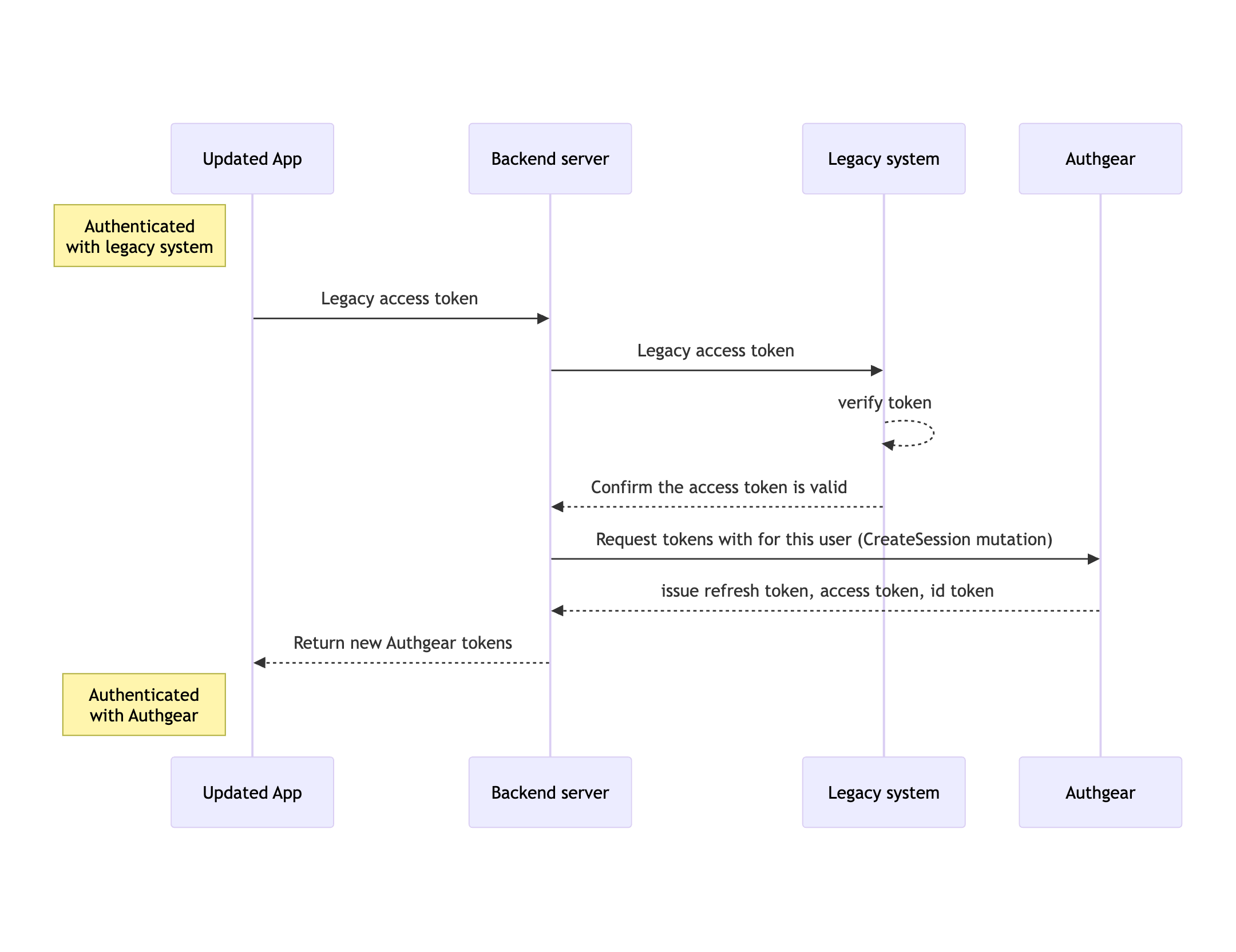
The Zero-Downtime migration ensures users remain logged in to your application throughout the migration from your legacy system to Authgear.
In Zero-Downtime migration, Authgear seamlessly creates new sessions from external access tokens provided by your legacy authentication system.
#### Pros
* Users are not logged out. Hence, there is no need for them to repeat login.
#### Cons
* More complex setup and deployment.
The following flow diagram explains a typical authentication flow using the zero-downtime migration approach:
Zero-downtime migration flow diagram
---
# Agent Instructions
This documentation is published with GitBook. GitBook is the documentation platform designed so that both humans and AI agents can read, navigate, and reason over technical content effectively. Learn more at gitbook.com.
## Querying This Documentation
If you need additional information that is not directly available in this page, you can query the documentation by asking a question.
Perform an HTTP GET request on the following URL with the `ask` and `goal` query parameters:
```
GET https://docs.authgear.com/admin-and-operations/migration.md?ask=&goal=
```
`ask` is the immediate question: it should be specific, self-contained, and written in natural language.
`goal` is what the user is ultimately trying to achieve, the reason they need the answer. Sharing it helps GitBook give you a better, more relevant answer. A goal is most helpful when it describes the outcome the user wants rather than restating the question. For example, with `ask=how do I create an API token`, a goal like `automate deployments from our CI pipeline` lets GitBook tailor the answer to that use case.
The response will contain a direct answer to the question and relevant excerpts and sources from the documentation.
Use this mechanism when the answer is not explicitly present in the current page, you need clarification or additional context, or you want to retrieve related documentation sections.