> For the complete documentation index, see [llms.txt](https://docs.authgear.com/llms.txt). Markdown versions of documentation pages are available by appending `.md` to page URLs; this page is available as [Markdown](https://docs.authgear.com/customization/built-in-ui/user-settings.md).
# User Settings
Authgear offers prebuilt frontends for essential authentication features, including user settings pages.
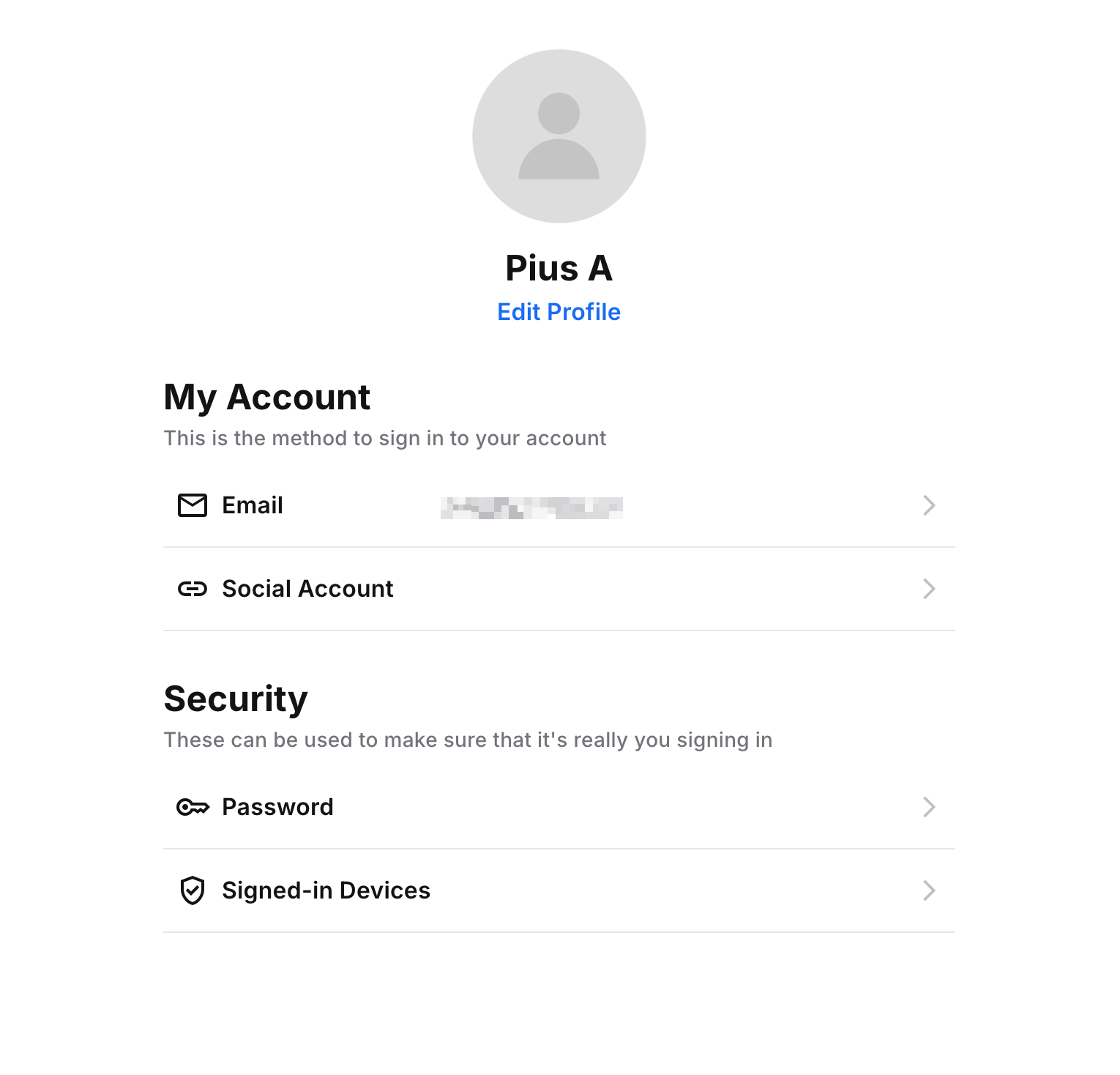
The User Settings page provides a prebuilt user interface for logged-in users of an Authgear project to view and edit their account settings.
user settings ui
## Actions in the settings page
The end-user can perform the following actions on the setting page:
* Change their password.
* Add or change their email, phone number, or username.
* Connect or disconnect to identity providers.
* Manage their signed-in sessions.
* Enable or disable 2-step verification.
* and many more.
## Open the settings page in websites
{% tabs %}
{% tab title="Next.js" %}
Use the `` component from `@authgear/nextjs/client`. It exchanges the user's session for a short-lived token and opens the pre-authenticated Settings page in a new tab — no Server Action required.
```tsx
import { UserSettingsButton } from "@authgear/nextjs/client";
export default function Dashboard() {
return (
Account Settings
);
}
```
The button must be rendered inside ``. Guard it with an authentication check to avoid errors when the user is not signed in:
```tsx
const { isAuthenticated } = useAuthgear();
Account Settings
```
See the [Next.js guide](/get-started/regular-web-app/nextjs.md#opening-user-settings) for more options such as styling and customising the route path.
{% endtab %}
{% tab title="Web SDK" %}
Use the `open()` method of the Authgear Web SDK to open the built-in settings page.
```tsx
import authgear, { Page } from "@authgear/web";
const openSettings = () => {
authgear.open(Page.Settings)
}
```
{% endtab %}
{% endtabs %}
## Open the settings page with the SDK in mobile apps
If you are working on a mobile app, you can open the settings page using any of our mobile SDKs. When the end-user has signed in, the SDK provides a method to open the settings page in a Webview.
{% tabs %}
{% tab title="React Native" %}
```typescript
import React, { useCallback } from "react";
import authgear, { Page } from "@authgear/react-native";
import { View, Button } from "react-native";
function SettingsScreen() {
const onPressOpenSettingsPage = useCallback(() => {
authgear.open(Page.Settings).then(() => {
// When the promise resolves, the webview have been closed.
});
}, []);
return (
);
}
```
{% endtab %}
{% tab title="Flutter" %}
```dart
Future onPressOpenSettingsPage() async {
await authgear.open(SettingsPage.settings);
}
```
{% endtab %}
{% tab title="Xamarin" %}
```csharp
async void OnOpenSettingsClicked(object sender, EventArgs args)
{
await authgear.OpenAsync(SettingsPage.Settings);
}
```
{% endtab %}
{% tab title="iOS" %}
```swift
func onPressOpenSettingsPage(sender: UIButton, forEvent event: UIEvent) {
authgear.open(.settings) {
// When the completion handler is called, the webview is closed.
}
}
```
{% endtab %}
{% tab title="Android" %}
```java
public void onClickOpenSettingsPage() {
authgear.open(Page.Settings, null, new OnOpenURLListener() {
@Override
public void onClosed() {
// The webview is closed.
}
@Override
public void onFailed(Throwable throwable) {
// Some error occurred.
}
});
}
```
{% endtab %}
{% endtabs %}
## Back to my app button
In a web-based application, you may want to add the "Back to my app" button to the settings page so the user can navigate back to your website after changing the settings.
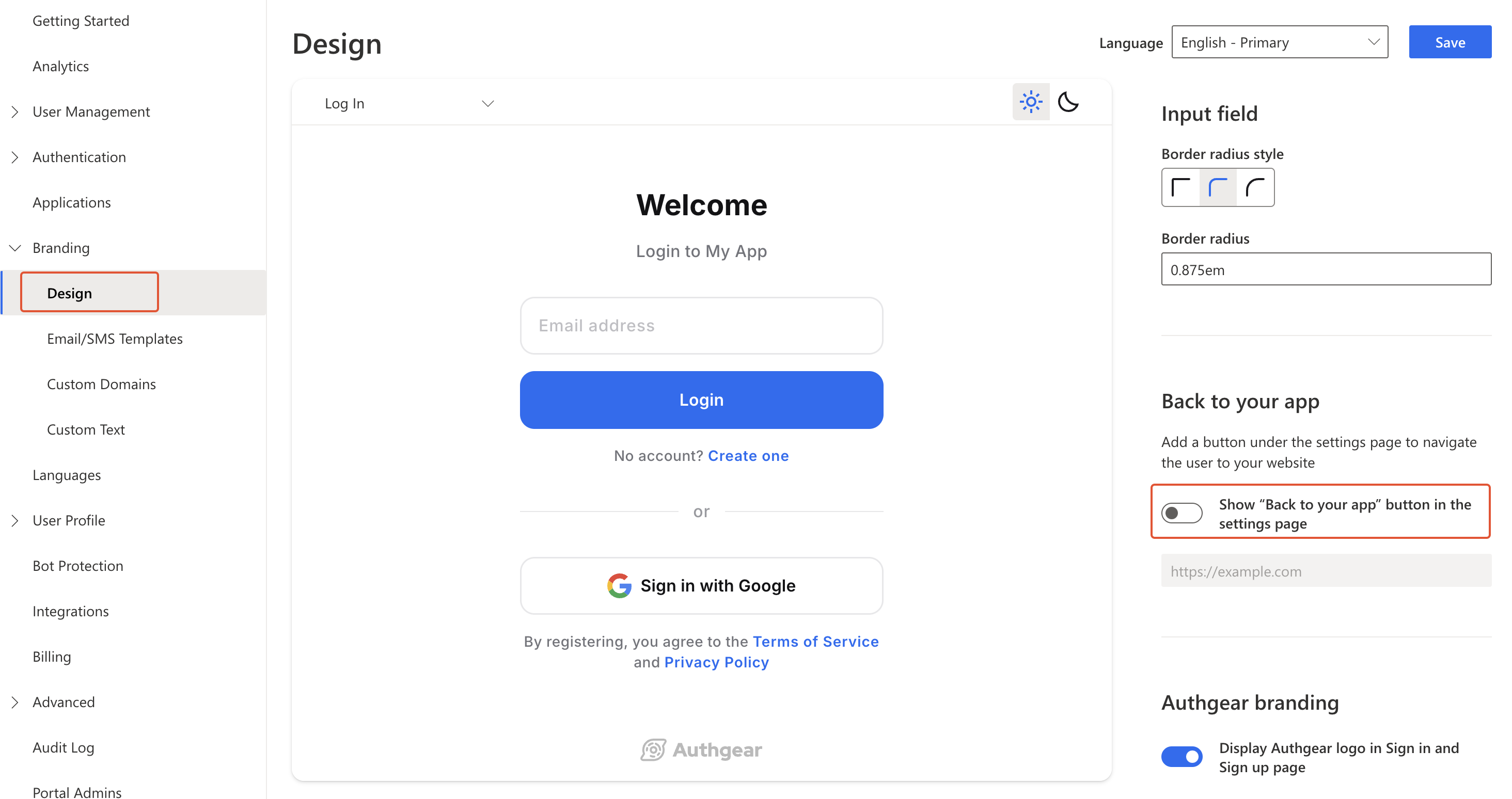
To enable the back button, navigate to **Branding** > **Design** in Authgear Portal.\
Toggle the **Show “Back to your app” button in the settings page** switch on. Enter the destination URL for the 'Back to my app' button below the switch.
Click **Save** to apply your new settings.
## Customize User Settings Page
You can customize the look and feel of the User Settings page using the [UI design](/customization/built-in-ui/branding.md) tool in Authgear Portal.
Navigate to **Branding** > **Design** in Authgear Portal to customize the User Settings page.
The theme (dark, light, or auto), logo, colors, border, etc. you set for AuthUI will also apply to the User Settings page.
---
# Agent Instructions
This documentation is published with GitBook. GitBook is the documentation platform designed so that both humans and AI agents can read, navigate, and reason over technical content effectively. Learn more at gitbook.com.
## Querying This Documentation
If you need additional information that is not directly available in this page, you can query the documentation by asking a question.
Perform an HTTP GET request on the following URL with the `ask` and `goal` query parameters:
```
GET https://docs.authgear.com/customization/built-in-ui/user-settings.md?ask=&goal=
```
`ask` is the immediate question: it should be specific, self-contained, and written in natural language.
`goal` is what the user is ultimately trying to achieve, the reason they need the answer. Sharing it helps GitBook give you a better, more relevant answer. A goal is most helpful when it describes the outcome the user wants rather than restating the question. For example, with `ask=how do I create an API token`, a goal like `automate deployments from our CI pipeline` lets GitBook tailor the answer to that use case.
The response will contain a direct answer to the question and relevant excerpts and sources from the documentation.
Use this mechanism when the answer is not explicitly present in the current page, you need clarification or additional context, or you want to retrieve related documentation sections.