> For the complete documentation index, see [llms.txt](https://docs.authgear.com/llms.txt). Markdown versions of documentation pages are available by appending `.md` to page URLs; this page is available as [Markdown](https://docs.authgear.com/get-started/single-sign-on-with-saml.md).
# Integration by SAML
Guides on how to use Authgear as a SAML Identity Provider for Single Sign-On
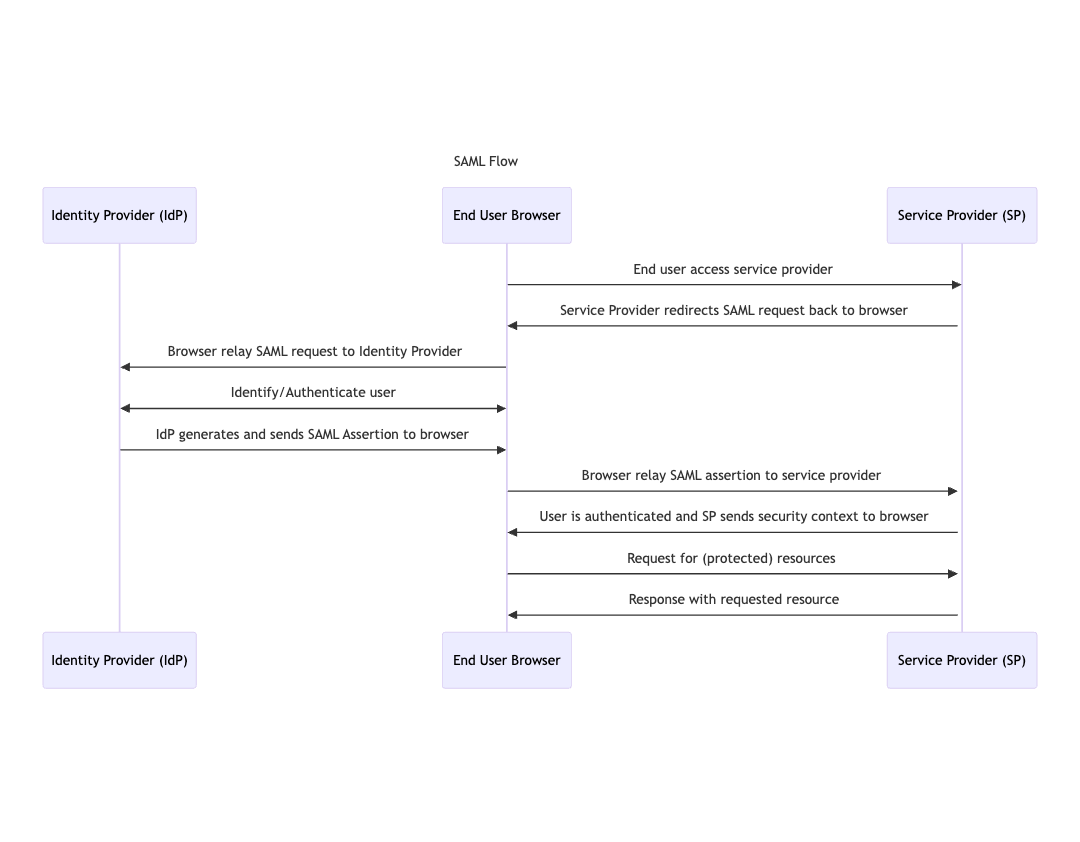
Security Assertion Markup Language or short [SAML](https://docs.oasis-open.org/security/saml/Post2.0/sstc-saml-tech-overview-2.0.html) is a standard for exchanging security information between businesses. In SAML, one party acts as the Identity Provider (IdP), and the other party is the Service Provider (SP).
SAML allows the Identity Provider and Service Provider to authenticate and authorize without exchanging a user's password.
* **The Service Provider (SP)**: In SAML, this is the service that trust the Identity Provider to handle the process of user authentication.
* **The Identity Provider (IdP)**: handles user authentication and notifies the Service Provider once the user is authenticated.
Authgear supports the SAML protocol. Hence, you can set up third-party services like Salesforce, Dropbox, Figma, etc. to trust Authgear with the user authentication process.
## Specific Instructions for Service Providers
See the following guides for some popular service providers:
* [Use Authgear as SAML Identity Provider for Salesforce](/get-started/single-sign-on-with-saml/use-authgear-as-saml-identity-provider-for-salesforce.md)
* [Use Authgear as SAML Identity Provider for Dropbox](/get-started/single-sign-on-with-saml/use-authgear-as-saml-identity-provider-for-dropbox.md)
## How to Set up SAML in Authgear
To set up SAML in Authgear, you need to create an Authgear client application with the Application Type: `OIDC/SAML Client`. Then use the configuration for the Authgear client application to configure a SAML IdP on the Service Provider's platform.
The following steps show more details on how to set up an OIDC/SAML Client Application in Authgear Portal.
### Step 1: Create Authgear Client Application
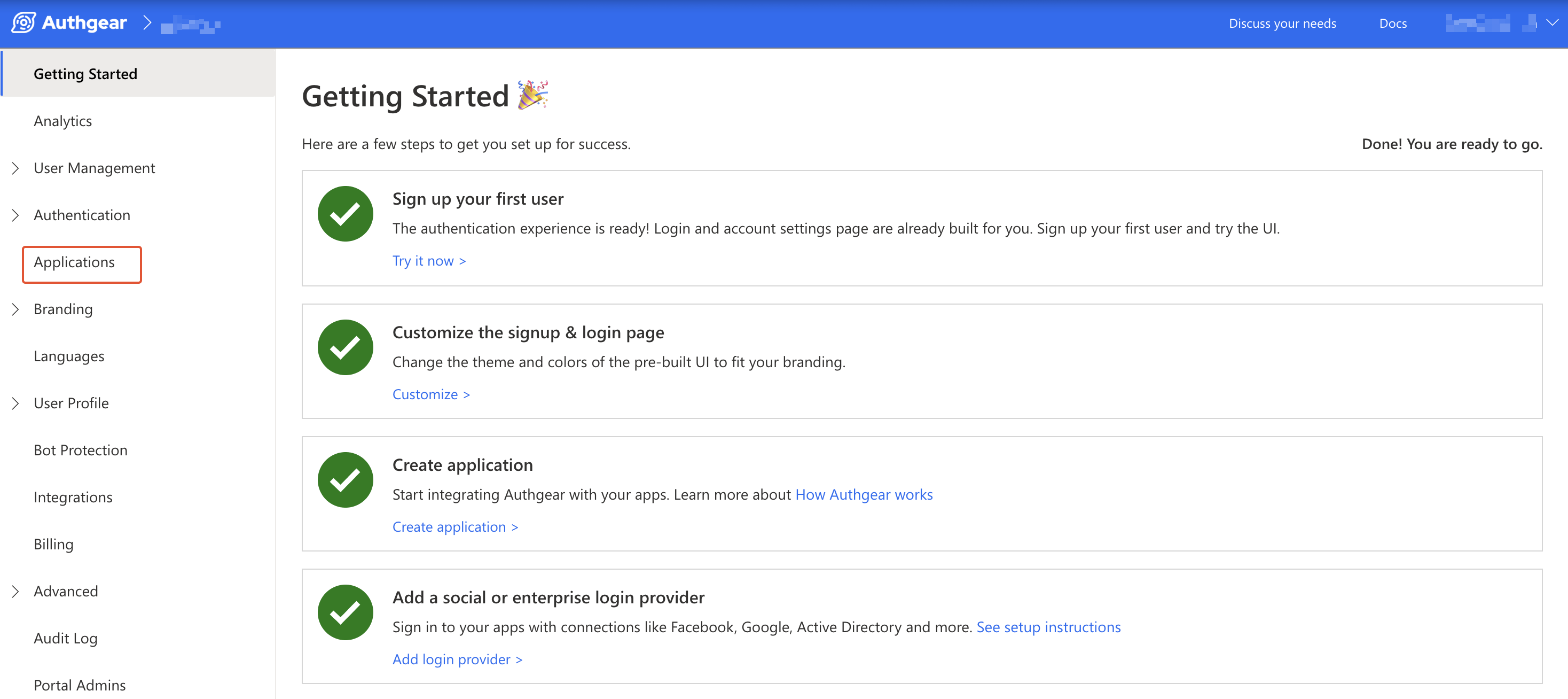
Log in to Authgear Portal, then click on Applications from the navigation menu.
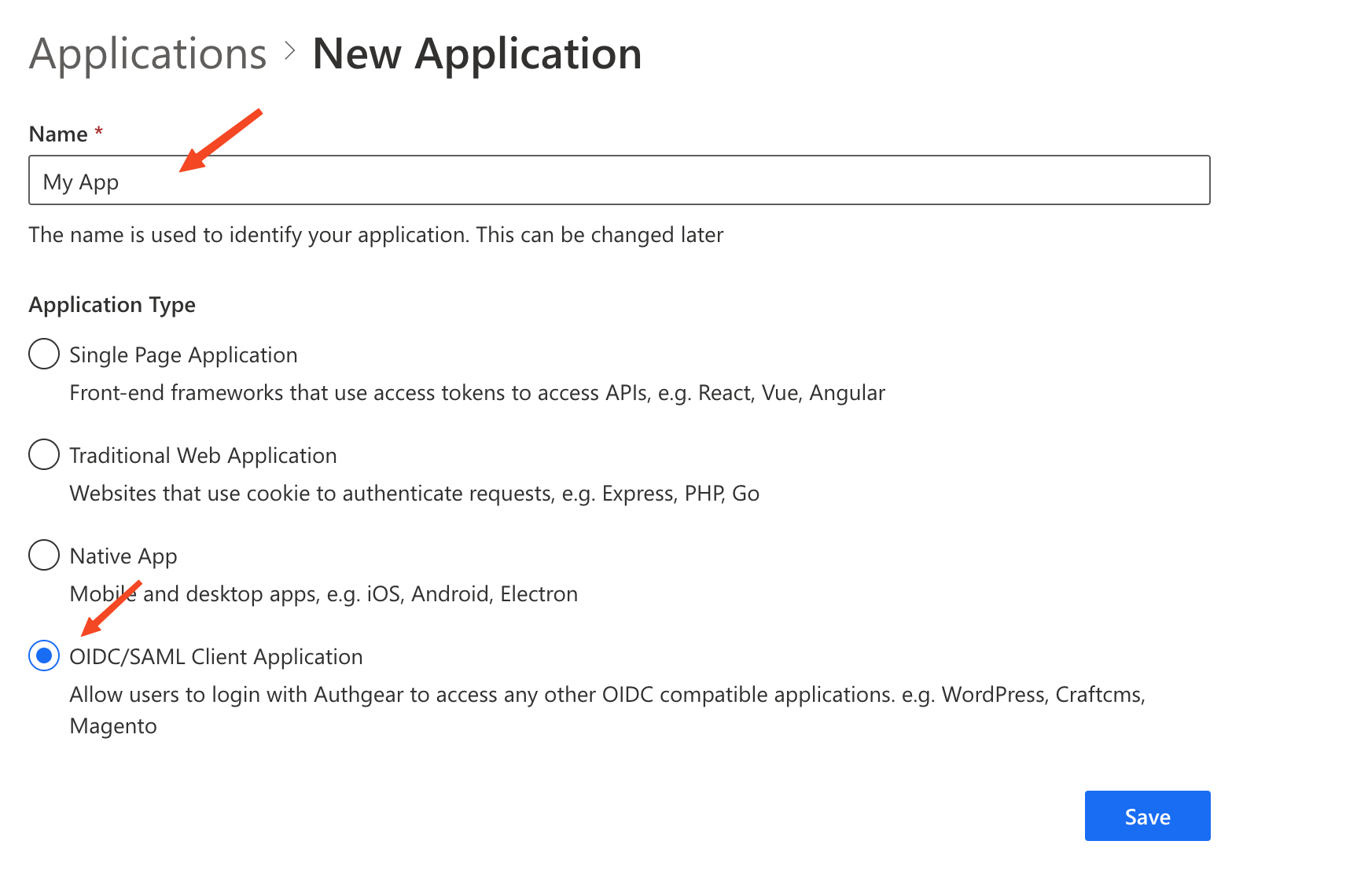
Click on Add Application to create a new client application. Or select an existing client application with the `OIDC/SAML Client` type.
Enter a **Name** for the application and select OIDC/SAML Client Application as the **Application Type**.
Click **Save** to proceed.
### Step 2: Enable SAML 2.0
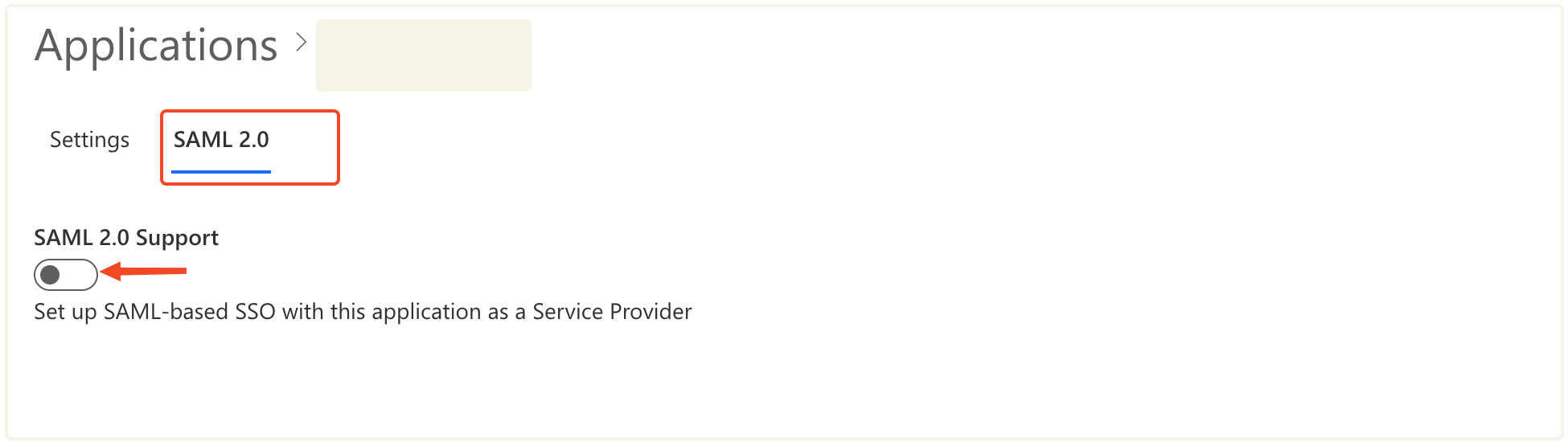
By default, the SAML 2.0 Configuration is disabled for the client application.
Click on the SAML 2.0 tab then toggle **SAML 2.0 Support** switch to enable SAML 2.0.
You'll be required to enter at least one **Allowed Assertion Consumer Service URLs (ACS URLs)** before you can save your changes. Hence, get an **ACS URL** from the Service Provider you plan to use.
### Step 3: Configure Authgear as IdP on a Service Provider
Visit the portal for the Service Provider you plan to use and add Authgear as an Identity Provider using the SAML configuration from your Authgear client application.
Refer to the following instructions for a generic SP:
**Configuration on SP:**
* Enter the Identity Provider Metadata URL provided by Authgear if it's supported by the SP. e.g. `https://[AUTHGEAR_ENDPOINT]/saml2/metadata/[CLIENT_ID]`
* If the SP does not support uploading an IDP metadata file, you can manually enter the parameters into the SP. These values can be copied from the application settings page:
* Issuer: `urn:[AUTHGEAT_ENDPOINT]`
* Login URL: `https://[AUTHGEAR_ENDPOINT]/saml2/login/[CLIENT_ID]`
* Logout URL: `https://[AUTHGEAR_ENDPOINT]/saml2/logout/[CLIENT_ID]`
* Identity Provider Certificates in PEM format: Download from the application settings page
**Configuration on Authgear**
* Upload the Metadata XML file provided by your client application into the Authgear Portal
* You may also manually enter the parameters into the application settings page in the Portal:
* NameID Format
* `urn:oasis:names:tc:SAML:1.1:nameid-format:unspecified` , or
* When the format is `unspecified`, you can choose to use the User ID, Email, Phone, or Username as the attribute value
* `urn:oasis:names:tc:SAML:1.1:nameid-format:emailAddress`
* Allowed Assertion Consumer Service URLs (ACS URLs)
* Response Destination (Optional)
* Subject Recipient (Optional)
* Assertion Audience (Optional)
* Assertion Valid Duration (seconds), Default: 1200
* Enable/Disable Single Logout (SLO)
* SLO Callback URL
* Callback Binding
* `urn:oasis:names:tc:SAML:2.0:bindings:HTTP-Redirect`, or
* `urn:oasis:names:tc:SAML:2.0:bindings:HTTP-POST`
* Enable/Disable message signature verification
* Upload the SP's certificate in PEM format
You may find more detailed guides for adding IdP on the Service Provider's documentation.
## Tools for troubleshooting
* Online Base64 decode/encode:
---
# Agent Instructions
This documentation is published with GitBook. GitBook is the documentation platform designed so that both humans and AI agents can read, navigate, and reason over technical content effectively. Learn more at gitbook.com.
## Querying This Documentation
If you need additional information that is not directly available in this page, you can query the documentation by asking a question.
Perform an HTTP GET request on the following URL with the `ask` and `goal` query parameters:
```
GET https://docs.authgear.com/get-started/single-sign-on-with-saml.md?ask=&goal=
```
`ask` is the immediate question: it should be specific, self-contained, and written in natural language.
`goal` is what the user is ultimately trying to achieve, the reason they need the answer. Sharing it helps GitBook give you a better, more relevant answer. A goal is most helpful when it describes the outcome the user wants rather than restating the question. For example, with `ask=how do I create an API token`, a goal like `automate deployments from our CI pipeline` lets GitBook tailor the answer to that use case.
The response will contain a direct answer to the question and relevant excerpts and sources from the documentation.
Use this mechanism when the answer is not explicitly present in the current page, you need clarification or additional context, or you want to retrieve related documentation sections.